
It is the moment every developer dreads. You just pushed a massive feature to your public GitHub repository, and as you double-check your commits, your stomach drops. Staring right back at you is a hardcoded AWS Access Key.
Your first instinct might be to quickly delete the line, run git commit -m "removed api key", and push again.
Do not do this.
Git is a version control system. Its purpose is to preserve the complete history of your repository. If you just delete the key in a new commit, automated bots scraping GitHub will still find the exposed key sitting perfectly intact in your commit history.
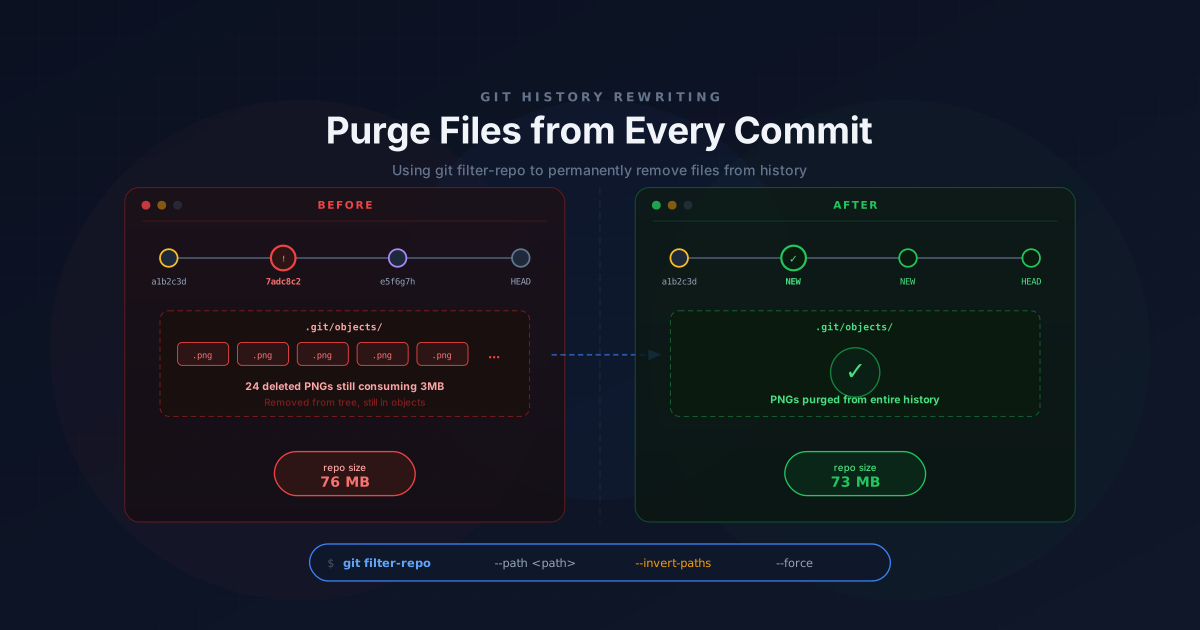
In my previous guide, I showed you how to completely erase deleted files from Git history. Today, we are going to use the same tool—git filter-repo—to perform surgical Global Text Replacement.
We will rewrite reachable Git objects containing the leaked text and, when necessary, scrub commit messages (and annotated tag messages) using Git filter-repo’s message replacement option.
⚠️ First Response: Invalidate and Backup Immediately#
Before you do anything with Git, revoke the leaked credential. If it is an AWS key, deactivate/delete the exposed key in AWS IAM immediately. (Note: GitHub’s Secret Scanning often detects exposed AWS keys automatically—this is helpful, but you still must manually revoke the key!) Automated scanners can discover exposed credentials quickly, so treat any leaked secret as compromised and rotate it first.
Second, create a full backup of your repository. git filter-repo is a highly destructive command. If you make a typo in your replacements file, it will rewrite every commit in your repository. Copy your .git folder to a safe location before proceeding.
When NOT to rewrite history#
Don’t rewrite history if:
- The repository is heavily shared among many developers, and the secret was already rotated.
- Regulatory requirements strictly require preserving the original history.
- The coordination effort to wipe history across all team members would be more disruptive than simply revoking the credential.
If these apply, just revoke the key and move on. Otherwise, proceed with the cleanup.
Is it too late? (The Wayback Machine Anxiety)#
If you realize you leaked a secret three days ago, your first thought might be panic, followed by defeat: “Bots or internet archives probably already scraped it. What’s the point of rewriting history now?”
Do not give up. This is a core cybersecurity concept called Defense in Depth. Just because a burglar could have already smashed a window doesn’t mean you should leave the front door wide open forever. Most automated secret scanners prioritize newly pushed commits and the current repository state, although historical commits may still be indexed or scanned.
By scrubbing your history now, you reduce future exposure from the repository’s visible history and prevent new clones from receiving the leaked value through normal history traversal.
Why Interactive Rebase Is Usually the Wrong Tool#
Many developers try to fix this by using an interactive rebase (git rebase -i). They rewind history back to the specific commit where they leaked the secret, manually delete it, and replay the history.
While this works for a typo in your most recent commit, it is a terrible idea for a leaked secret because:
- Human Error: If you accidentally pasted that API key in multiple files across different commits, you will likely miss one.
- Tedious: Rebasing hundreds of commits is slow and prone to painful merge conflicts.
We need a solution that is automated, thorough, and far less error-prone.
The Right Way: Global Text Replacement#
git-filter-repo is the Git project’s recommended replacement for the older git filter-branch command. Instead of dealing with files directly, it manipulates the internal .git database.
1. Create a Replacements File#
Instead of writing a complex terminal command, filter-repo lets you use a simple text file to map out your redactions.
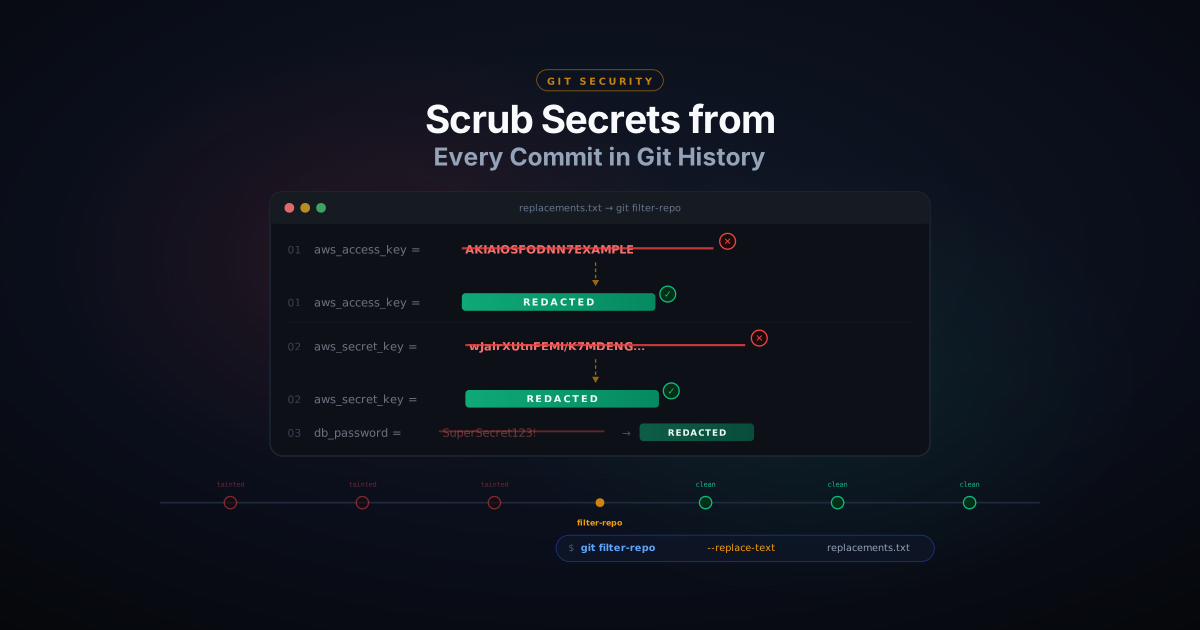
Create a temporary file outside of your repository (e.g., ~/replacements.txt) and define your rules using the exact string, followed by ==>, and the replacement text.
# replacements.txt
AKIAIOSFODNN7EXAMPLE==>REDACTED_AWS_KEY
wJalrXUtnFEMI/K7MDENG/bPxRfiCYEXAMPLEKEY==>REDACTED_AWS_SECRET
MySuperSecretPassword123!==>REDACTED
(Note: If you leave the right side of the arrow blank, the tool will just delete the string entirely. For more advanced cases, git filter-repo also supports regular-expression replacements, although exact string matching is usually the safest option for secrets.)
2. Verify and Execute the Scrub#
Before you run the command, locate commits that introduced or removed the secret using the -S flag, which searches the exact text added or removed in past commits:
git log -p -S "AKIAIOSFODNN7EXAMPLE"(This returns commits where the number of occurrences of the specified string changed, along with their diffs.)
Now, run the replacement command. Make sure you have no unsaved changes in your working directory!
git filter-repo --replace-text ~/replacements.txt --forceIn seconds, filter-repo will process reachable objects, rewrite blobs containing the matching text, and repack the repository.
If you run your verification command again:
git log -p -S "AKIAIOSFODNN7EXAMPLE"It should return no matching commits in the rewritten history. For additional confidence, also scan the repository contents and objects directly (e.g., git grep "AKIAIOSFODNN7EXAMPLE" $(git rev-list --all)).
Bonus: Scrubbing Commit Messages#
What if you accidentally wrote the secret inside a commit message itself?
(e.g., git commit -m "Testing AWS connection with key AKIAIOSFODNN7EXAMPLE")
To verify if your secret is hiding in a commit message, you can search all commit metadata directly using:
git log --all --grep="AKIAIOSFODNN7EXAMPLE"The --replace-text command rewrites matching text found in Git blobs (file contents stored throughout history). It does not rewrite commit messages. To scrub your actual commit metadata, you can use the --replace-message flag with the exact same text file! It scans commit messages (and annotated tag messages) and rewrites matching text.
git filter-repo --replace-message ~/replacements.txt --forcegit filter-repo --replace-text ~/replacements.txt --replace-message ~/replacements.txt --forceThe Butterfly Effect (Hashes)#
When you run these commands, you will notice that your commit IDs (hashes) have all completely changed. Why?
Git uses cryptographic hashing for integrity. A commit’s hash is generated from its exact contents, metadata, and the hash of its parent.
graph TD
    classDef old fill:#fecaca,stroke:#dc2626,stroke-width:2px,color:#000
    classDef new fill:#bbf7d0,stroke:#16a34a,stroke-width:2px,color:#000
    classDef neutral fill:#e2e8f0,stroke:#64748b,stroke-width:2px,color:#000

    subgraph Before: Leaked Secret
        A[Commit 1
 Hash: a1b2c3d]:::neutral --> B[Commit 2
 Contains 'AKIA...'
 Hash: e4f5g6h]:::old
        B --> C[Commit 3
 Hash: i7j8k9l]:::old
    end

    subgraph After: git filter-repo
        D[Commit 1
 Hash: a1b2c3d]:::neutral --> E[Commit 2
 Contains 'REDACTED'
 NEW Hash: z9y8x7w]:::new
        E --> F[Commit 3
 NEW Hash: v6u5t4s]:::new
    end
Advanced Tips and Common Pitfalls#
1. The Exact Match Trap#
git filter-repo replaces exact strings. If your replacements.txt says MyPassword123, but you actually typed MyPassword1234 in one file, it will completely ignore it! Keep your replacement strings as short and specific as possible (matching is byte-for-byte and case-sensitive; target the exact secret, not the surrounding code).
2. Deep Search: -S vs -G#
When verifying that your secret is gone, we used git log -S "secret". This searches for commits where the number of occurrences of the string changed. For an even deeper verification, you can use -G (e.g., git log -p -G "secret"). This runs a Regular Expression search across the actual diff lines, catching edge cases where -S might fail.
3. The “No Modified Files” Illusion#
After running the scrub, you might run git status and be confused when it says working tree clean. Why aren’t your files marked as “Modified”?
Because filter-repo alters your history backward in time, your physical files are instantly synced to match the newly rewritten history. Since your hard drive perfectly matches the new commit, Git sees zero unsaved changes!
4. Git Submodules Are Separate#
If the leaked secret exists inside a submodule repository (like a Hugo theme), git filter-repo running in the parent repository will not clean it. You will have to run the cleanup process inside that specific submodule’s repository separately.
5. Where do the old commits go? (Garbage Collection)#
If you are worried that the old, dirty files containing your leaked secrets are still lingering on your hard drive, you do not need to worry about this immediately. Unreachable objects remain in your local repository until Git’s garbage collection eventually prunes them after the appropriate expiration period (or sooner if you explicitly expire reflogs and run git gc).
(Advanced tip: If you want to force immediate cleanup, you can manually run git reflog expire --expire=now --all followed by git gc --prune=now. Note that --aggressive is optional and usually unnecessary for simply removing unreachable objects. Warning: After expiring reflogs and running garbage collection, the old objects are no longer recoverable from that local clone. Copies may still exist in other clones, forks, backups, or hosting-provider storage. Only do this after you’re certain the rewritten history is correct.)
The Final Step: Force Pushing#
Because your entire history has been rewritten, GitHub will not recognize your new commits. In fact, git filter-repo may remove the origin remote after rewriting history as a safety precaution, especially when operating on a freshly cloned repository. This prevents accidental force-pushing before you verify the rewritten history.
1. Reconnect the Remote#
First, reconnect your repository to GitHub:
git remote add origin https://github.com/yourusername/your-repo.git2. Verification (Diff)#
Before you do something as destructive as a force push, you can verify that your project files contain only the intended differences by comparing your local history to what is currently live on GitHub. (Remember that rewritten commit hashes do not necessarily mean your project files changed. You’re verifying the contents of your working tree, not whether commit IDs match. Replace main with your repository’s default branch if necessary.)
git fetch origin
git diff origin/main HEAD --name-statusgit fetch origin && git diff origin/main HEAD > diff.log. Don’t panic if you still see the git fetch progress print to your terminal! git fetch outputs to stderr (Standard Error), while > only redirects stdout (Standard Output). Your pure diff data is safely in the log file!3. The Force Push (All Branches and Tags!)#
If you only force push your main branch, the compromised commits might still be hiding on GitHub inside your dev branch or your old release tags!
To completely eradicate the leaked secret from every corner of the remote repository, you must overwrite all branches and all tags:
git push origin --force --all
git push origin --force --tags
(Review your local refs before pushing. If your repository contains unrelated tags or branches that should not be replaced, push only the affected refs instead.)
(Note: If you created signed tags, rewriting history changes the tagged commits, so existing cryptographic signatures on annotated tags are no longer valid.)
(Alternative: git push origin --mirror mirrors every local reference to the remote. This is convenient for complete repository rewrites, but be aware that it also deletes remote refs that no longer exist locally.)
4. Notify Collaborators (Crucial!)#
Anyone who previously cloned the repository should re-clone it or carefully reset their local branches to the rewritten history. They should also delete or recreate any local branches that still reference the old history after migrating to the rewritten repository. Merging old branches back into the cleaned repository can accidentally reintroduce the removed commits!
5. Rotate Dependent Secrets#
If applications, CI pipelines, or deployments used the exposed credential, update those systems with the new credential after rotation. Cleaning Git history does not update already deployed environments!
--force-with-lease instead of --force. This acts as a safety valve—Git will refuse to overwrite the remote branch if someone else has pushed new commits to it since you last fetched!The push itself also takes longer than usual.
git push only uploads a few kilobytes of recent changes. Because git filter-repo just assigned brand-new hashes to every commit in your history, GitHub doesn’t recognize any of them. Your computer will have to compress and re-upload your entire repository history from scratch. Large repositories with extensive histories may take several minutes to rewrite and upload.One thing is left outside the repository.
After the Push: GitHub’s Server Cache#
Git hosting providers may retain cached views, references, or backups of rewritten objects. Open pull requests and issues that reference old commit hashes can also keep the data temporarily accessible.
Remember that rewriting your repository does not remove the secret from existing forks or clones. If the credential was sensitive, treat it as compromised even after cleaning the history.
For sensitive leaks, contact GitHub Support to request a garbage collection on their servers and purge any cached views of the old commits.
Some Git hosting providers retain hidden references (such as pull request refs or backup refs) that are not updated by normal pushes. If a secret is especially sensitive, contact your hosting provider to ensure any server-side references are cleaned up.
Prevention: Stop It From Happening Again#
The best cleanup is the one you never have to do:
.gitignore: Block.env, credentials files, and build artifacts before they are ever staged.- gitleaks: A pre-commit hook that scans your staged changes for hardcoded secrets, API keys, and tokens before they ever enter a commit.
- detect-secrets: An alternative secret scanner by Yelp that maintains a baseline of known secrets in your repo.
- GitHub Push Protection: If your organization uses GitHub Secret Scanning with Push Protection, GitHub may automatically block pushes containing supported secret types before they reach the remote.
For a deeper dive on .gitignore, pre-commit hooks, and Git LFS for large files, see my companion guide: Removing Objects From Git History.
Your leaked secrets have now been removed from Git history, and your repository is safe once again. Just remember: Always revoke the credential first, clean up the history second.